A MOGRT file is the easiest way to add professional animated titles to an edit without leaving your editor. This guide explains how to use MOGRT files in Premiere Pro: what a MOGRT is, how to install one, how to edit text and colours, and how to fix the problems people run into most, from missing fonts to templates that won’t resize.
What is a MOGRT file?
MOGRT stands for Motion Graphics Template. It’s a packaged animation, usually built in After Effects, that exposes only the controls an editor needs: text, colours, sizes and a few switches. You drop it on the timeline in Premiere Pro, change the controls, and the animation updates. The designer’s keyframes, easing and effects stay intact underneath.
That makes MOGRTs ideal for lower thirds, titles, callouts and social graphics that appear many times in an edit and need to stay consistent.
How to use MOGRT files in Premiere Pro: installing a template
The panels have moved around in recent versions of Premiere Pro, so here are the methods that cover both newer and older releases:
- Drag and drop: drag the .mogrt file from your computer straight onto the timeline. This works in most versions and is the quickest way to try a single template.
- Graphics Templates panel (newer versions): open Window > Graphics Templates, then use the install button to add the .mogrt so it appears in your library for future projects.
- Essential Graphics panel (older versions): open Window > Essential Graphics, go to the Browse tab and click the Install Motion Graphics template icon at the bottom right.
- Menu command: in many versions, Graphics > Install Motion Graphics Template does the same job.
Installed templates stay in your library, so you only need to install a pack once. If a pack contains many files, install the ones you use most and keep the rest in a folder you can drag from when needed.
Adding a MOGRT to your edit
- Find the template in your graphics library, or drag the .mogrt file from your folder.
- Drop it on a video track above your footage, at the point where the title should appear.
- Trim the clip to the length you need. Well-built templates keep their intro and outro animations when you change the duration.
- Play it back to check the timing against your cut.
Editing text, colours and position
Select the graphic clip in the timeline. Its controls appear in the Properties panel in newer versions, or in the Edit tab of the Essential Graphics panel in older ones. Typical controls include:
- Text fields: type directly into them. Some templates also let you edit text in the Program Monitor.
- Colour pickers: set brand colours for text, shapes and backgrounds.
- Position and size sliders: move the title into a safe area or scale it for vertical formats.
- Checkboxes: turn optional elements on or off, such as a background box or an underline.
A practical tip: after styling one title the way you want, copy the clip and paste it for the next one. You only need to change the text, and every title keeps the same colours and position.
Example: lower thirds for an interview edit
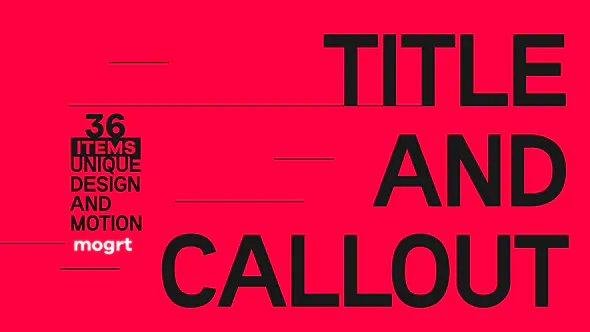
Say you’re cutting a ten-minute interview with four speakers. With the Minimal Title & Callout MOGRT pack, you install the pack once, drop a lower third on the first speaker’s entrance, set the brand colours and background opacity, and type the name and role. Copy that clip for each speaker and change only the text. The pack includes 36 items (intros, lower thirds, comments and YouTube Shorts graphics), works in Premiere Pro 2020 and later, and needs no plugins.
For product or explainer videos, the Infographics & CallOuts MOGRTs give you animated pointers and labels in the same way, and the 100+ Glitch Title MOGRTs cover punchier openers for gaming and tech content.
Common MOGRT problems and fixes
- Missing fonts: a red or substitute font usually means the template’s font isn’t installed. Install it (good packs include a link to a free font), then restart Premiere Pro.
- “Requires After Effects”: some MOGRTs made in After Effects need After Effects installed to render. If you don’t have it, use templates built for Premiere Pro or ask the creator which kind it is.
- Template looks stretched: check that your sequence settings match the template’s aspect ratio, or use a template that supports responsive resizing.
- Slow playback: render the graphic section (Sequence > Render In to Out) or lower the playback resolution while editing.
- Template not showing in the library: check that you installed it into the right library, or simply drag the .mogrt from its folder onto the timeline.
MOGRT or After Effects template?
Use a MOGRT when the graphic needs to change often in the edit (names, prices, dates) and the editor doesn’t use After Effects. Use a full After Effects template when you need deeper changes: new layers, different animation, or effects that a MOGRT doesn’t expose. Many of our packs come in both versions, so the motion designer and the editor can work from the same design.
FAQ
How do I open a MOGRT file in Premiere Pro?
Drag the .mogrt file onto your timeline, or install it from the Graphics Templates panel (Essential Graphics in older versions) so it stays in your library.
Do I need After Effects to use MOGRT files?
Not for templates built for Premiere Pro. Some MOGRTs created in After Effects need After Effects installed to render, so check the template’s description.
Where do I edit the text of a MOGRT?
Select the clip in the timeline and edit it in the Properties panel, or in the Edit tab of the Essential Graphics panel in older versions.
Why are the fonts wrong in my MOGRT?
The template’s font isn’t installed on your computer. Install the font and restart Premiere Pro.
Studio list
Get new tools and free drops first
One email when a new plugin, template or free pack is out. No spam, unsubscribe any time.